Important: If your account has been compromised in a Business Email Compromise (BEC) attack, hackers may have created email rules to hide their activities. Follow this guide to check and remove suspicious rules.
1. Sign in to Microsoft 365
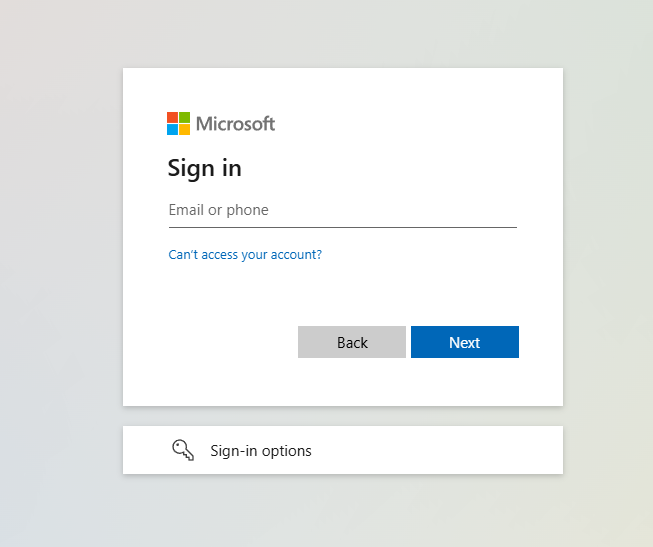
Open your web browser and navigate to https://www.office.com and sign in with your Microsoft 365 Business credentials.
2. Access Outlook
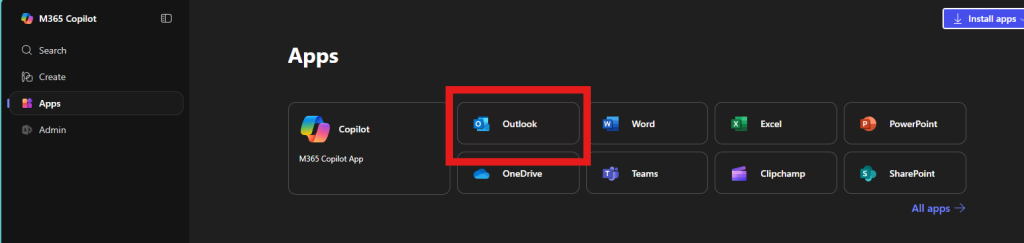
Once signed in, click on the Outlook icon in the Microsoft 365 app launcher.
3. Access Settings
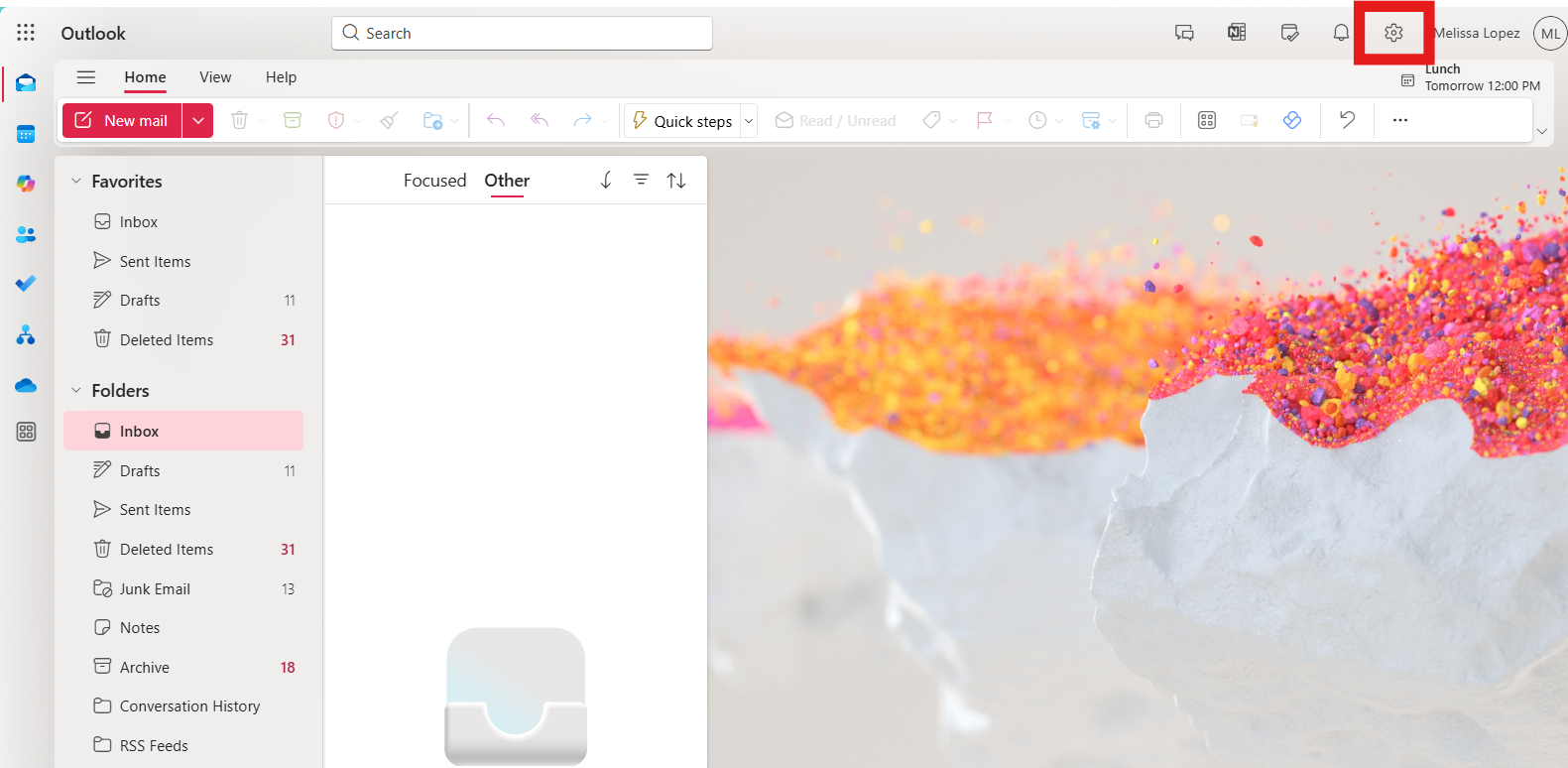
In Outlook, click on the gear icon in the top-right corner of the window to open Settings.
4. View All Outlook Settings
At the bottom of the settings panel, click on “View all Outlook settings”.
5. Navigate to Rules
In the Settings panel that opens:
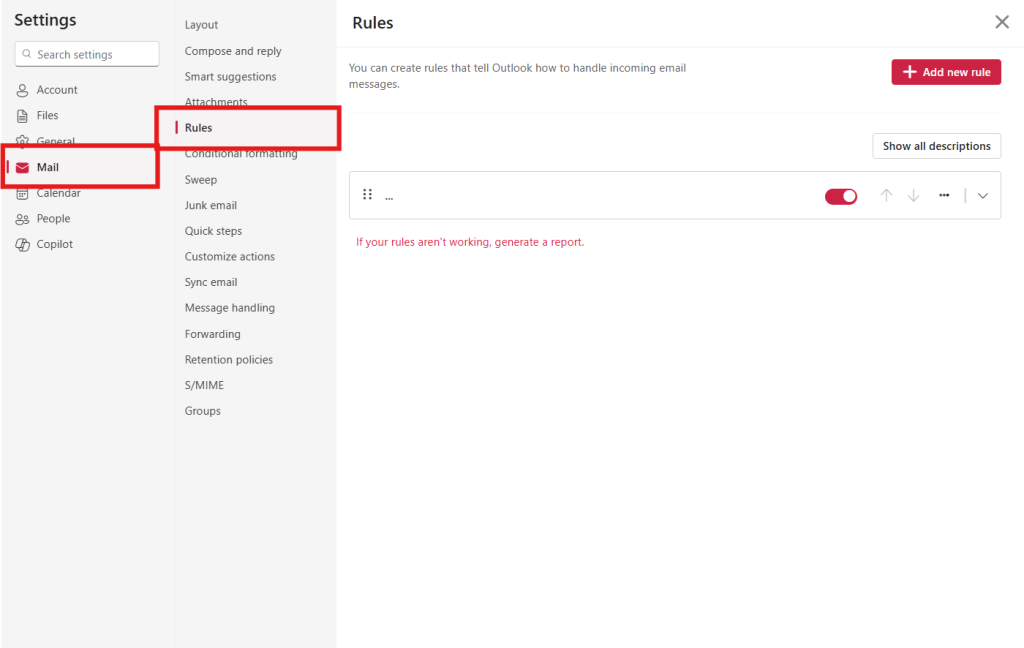
- Select “Mail” from the left navigation
- Then select “Rules” from the middle column
6. Review All Rules
Carefully review all rules in your account. Look for suspicious rules that might:
- Forward emails to external addresses you don’t recognize
- Move emails to folders you didn’t create
- Automatically delete certain emails
- Mark messages as read automatically
- Have been created at times you weren’t using your account
Look closely at: Rules that forward, redirect, or move emails containing keywords like “payment”, “invoice”, “wire”, “transfer”, “bank”, or “urgent”.
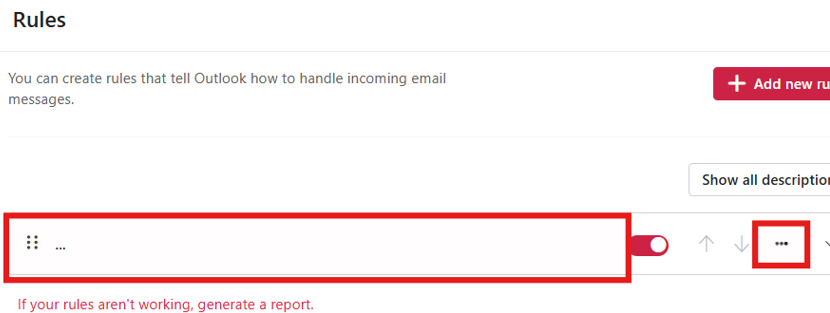
7. Delete Suspicious Rules
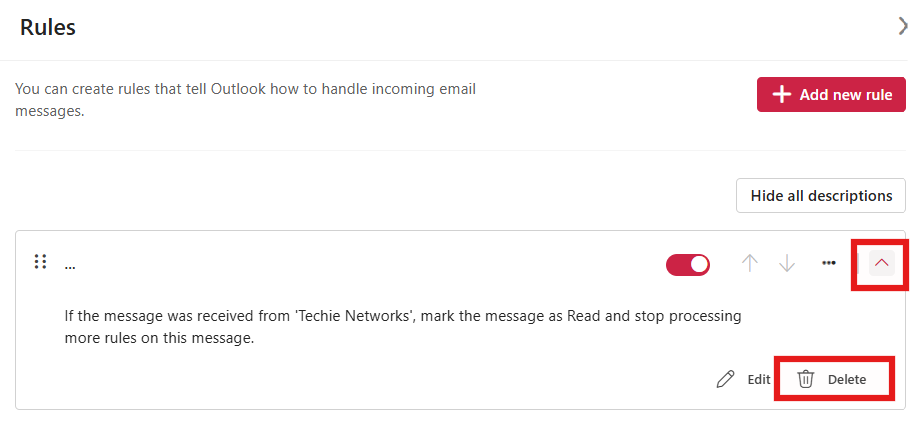
To delete a suspicious rule:
- Hover over the rule you want to delete
- Click the trash can icon that appears
- Confirm the deletion if prompted
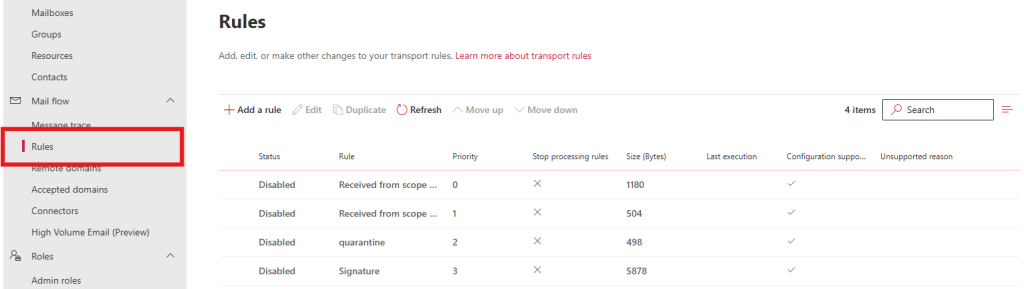
8. Check Inbox Rules via Mail Flow Settings (Admin Only)
If you’re an administrator, you should also check for mail flow rules that might have been created:
- Go to the Microsoft 365 admin center
- Navigate to “Exchange admin center”
- Select “Mail flow” > “Rules”
- Review all rules, especially those that forward emails outside your organization
Additional Security Steps
After checking and removing suspicious rules, we recommend:
- Change your password immediately
- Enable multi-factor authentication if not already active
- Check for any other unauthorized changes to your account settings
- Review recent sign-in activity for unauthorized access
- Contact your IT department to report the incident
Important: If you discover suspicious rules or believe your account has been compromised, report it to your IT department or security team immediately.
Comments are closed