Updating Settings to Allow the Calendar
Open Outlook App.
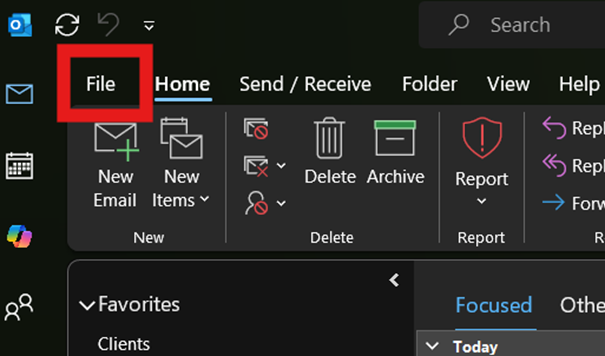
Go to File.
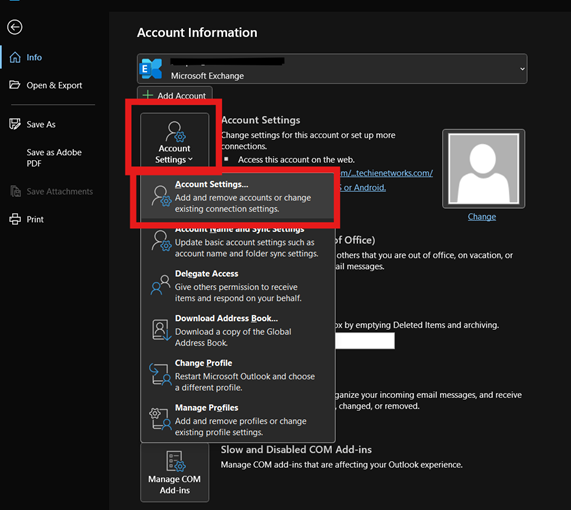
Account Settings > Account Settings.
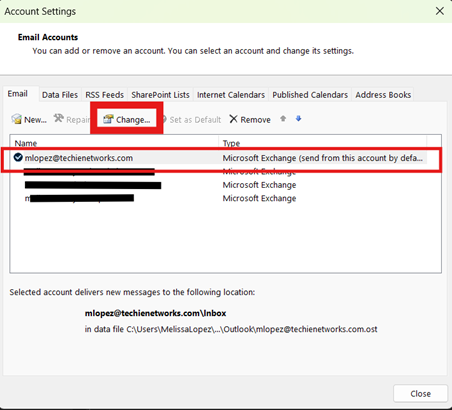
Select your Microsoft Exchange account, then click Change.
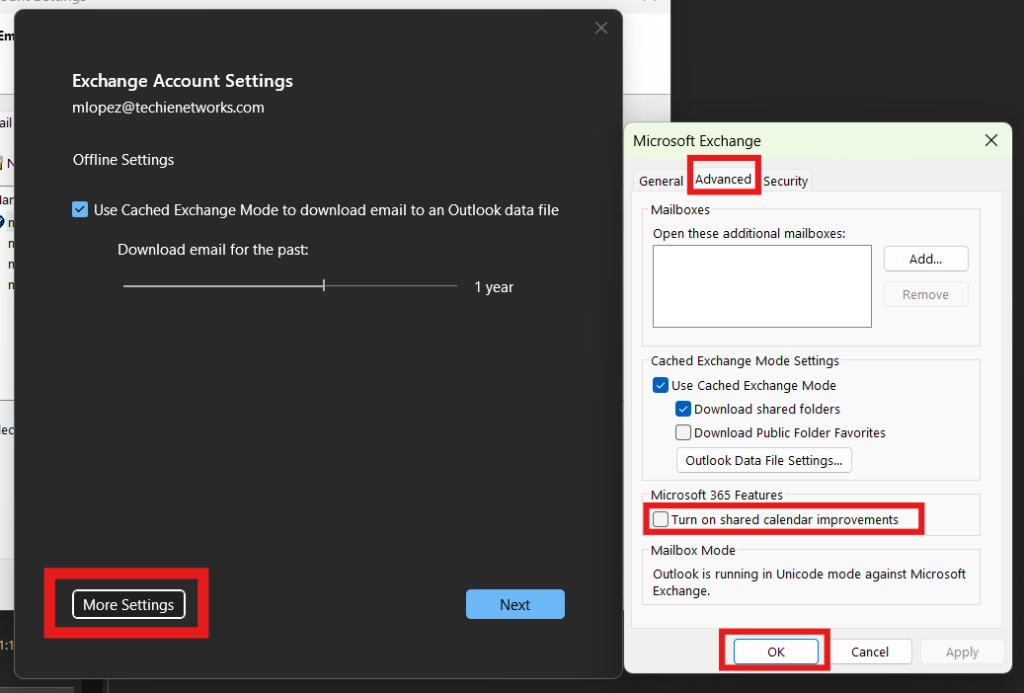
Click More Settings.
Go to the Advanced tab.
Uncheck the box labeled “Turn on shared calendar improvements”.
Click OK, then Next, then Finish.
Restart Outlook.
Subscribe to Google Calendar in Outlook:
This method keeps your Google Calendar synced in Outlook.
Open Google Calendar in a browser: https://calendar.google.com
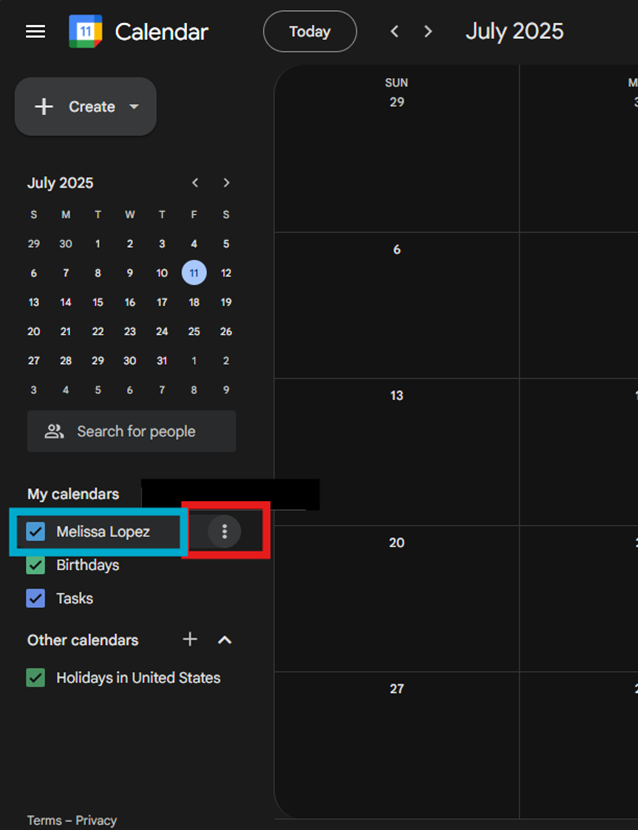
On the left, under “My calendars”, hover over the calendar you want to add.
Click the three dots (⋮) > Settings and sharing.
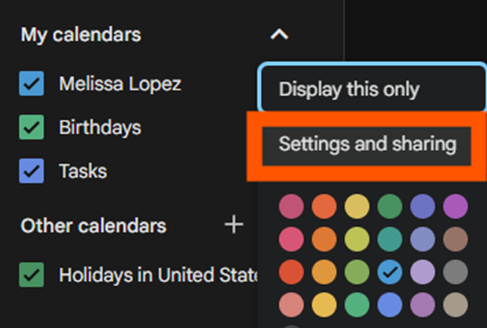
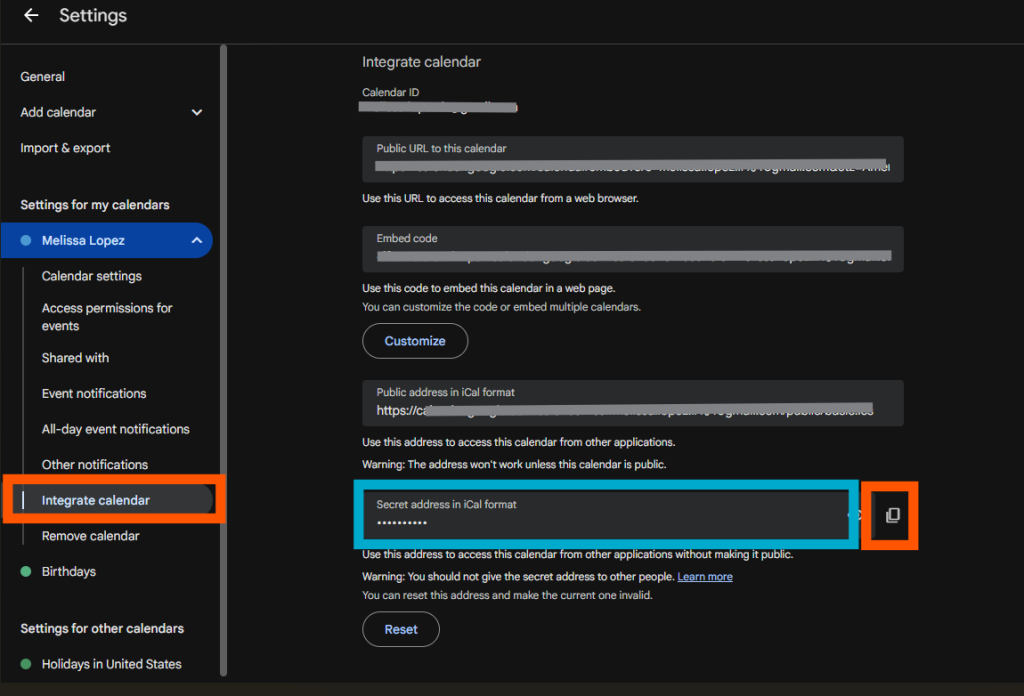
Scroll to “Integrate calendar”.
Copy the Secret address in iCal format (not the public one).
Open Outlook (desktop or web) click on your calendar
Desktop:
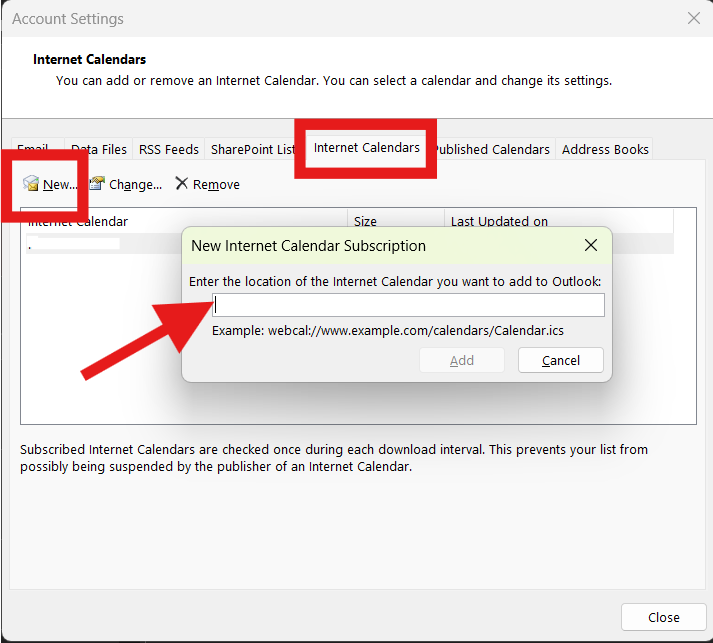
Go to ‘File’ > ‘Account Settings’ > ‘Account Settings’ > ‘Internet Calendars’ > ‘New’
Paste the iCal URL and click ‘Add’.
Outlook Web:
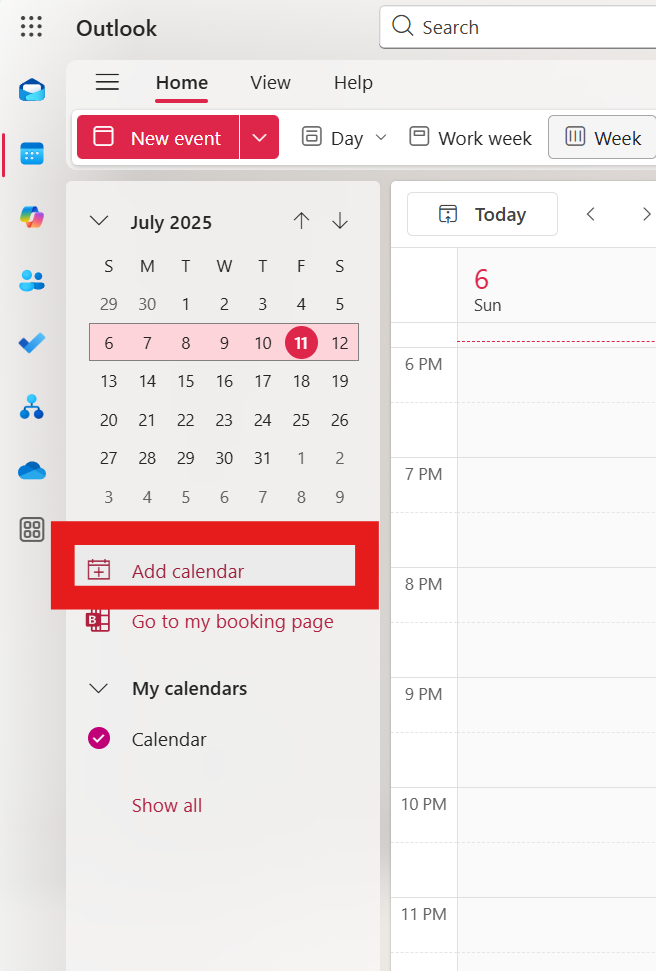
Go to Settings (⚙️) > View all Outlook settings > Calendar > Shared calendars
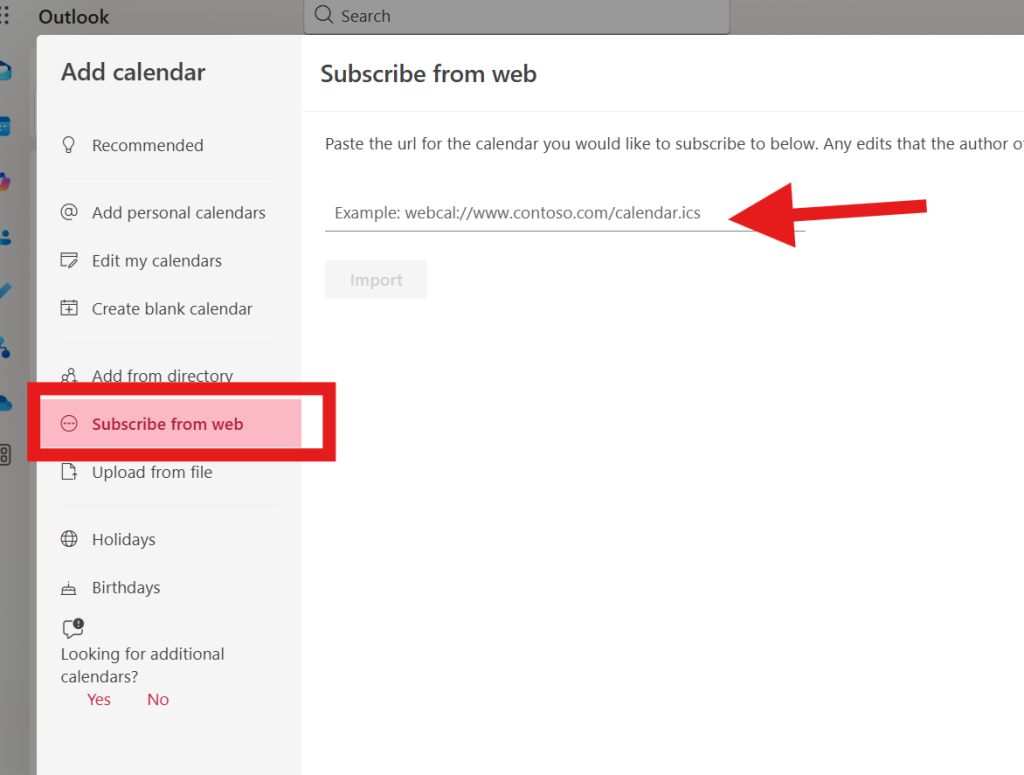
Under “Add calendar”, choose “Subscribe from web”
Paste the iCal URL, give it a name, and click Import.
Comments are closed