HOW TO CONNECT YOUR POLYCOM VVX 350 PHONE TO WI-FI
To transfer an active call, whether it came in or you made the call, perform the following steps
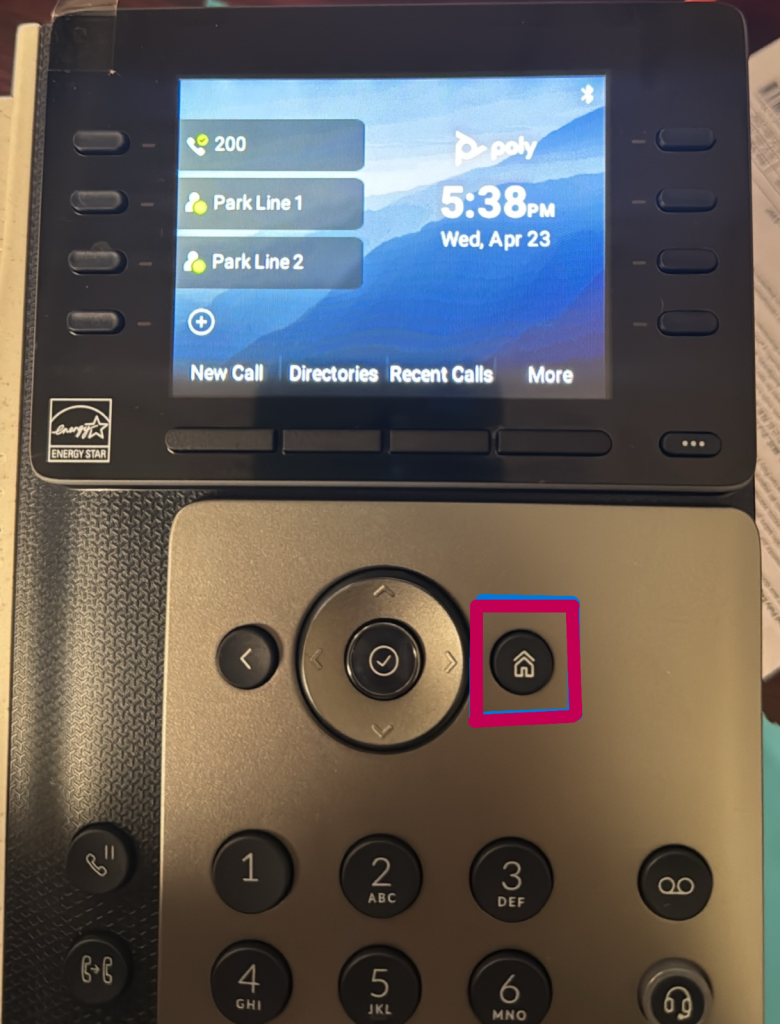
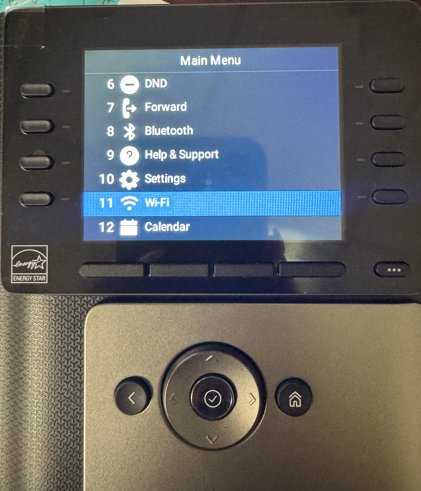
1. Open the Main Menu, press the Home button to access the main menu.
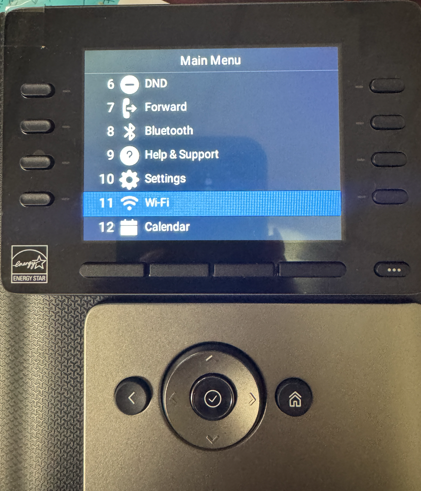
2. Go to Wi-Fi Settings. Scroll down to Option 11 – Wi-Fi and select it by pressing the center button.
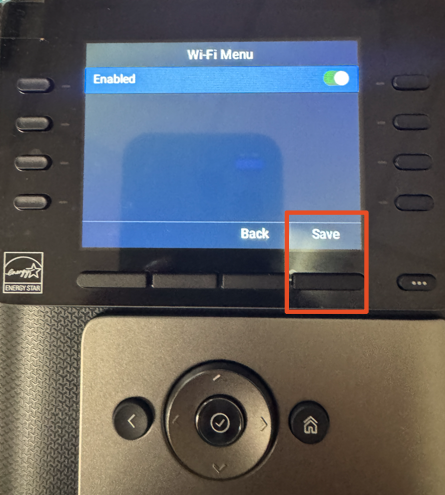
3. Enable Wi-Fi by highlighting the Wi-Fi option. Press the round center button to enable it. Then, press the
Save button (on the right).
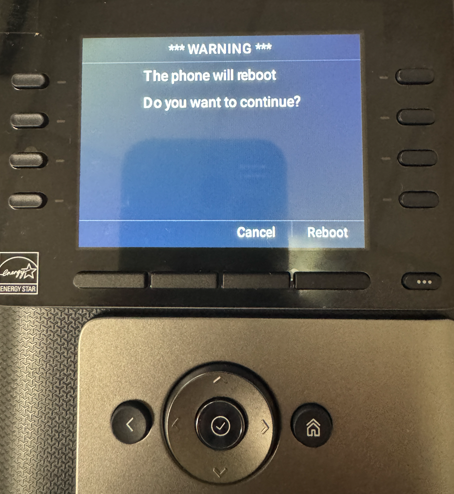
4. The phone will automatically reboot. This may take a minute.
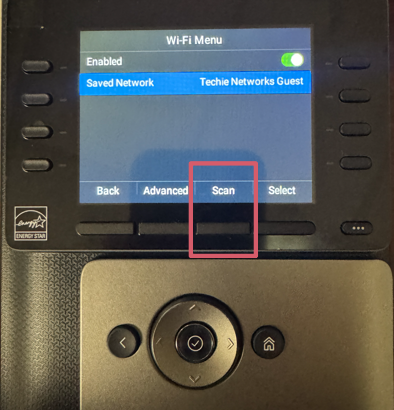
5. Scan for Networks. Once the phone restarts, press the Home button again. Go to Option 11 – Wi-Fi. Then,
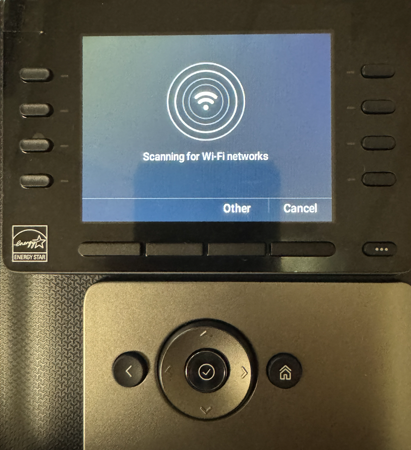
Press Scan to search for nearby networks.
6. Connect to Your Network. Find your Wi-Fi network in the list and select it.
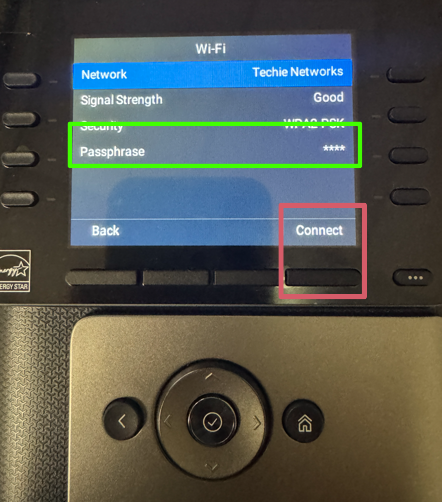
7. Enter your Wi-Fi password under Passphrase. Use the Encoding button to switch between uppercase,
lowercase, numbers, symbols, and spaces as you type.
Tip: The zero (0) key includes space and underscore (_)—press it repeatedly to cycle through options.
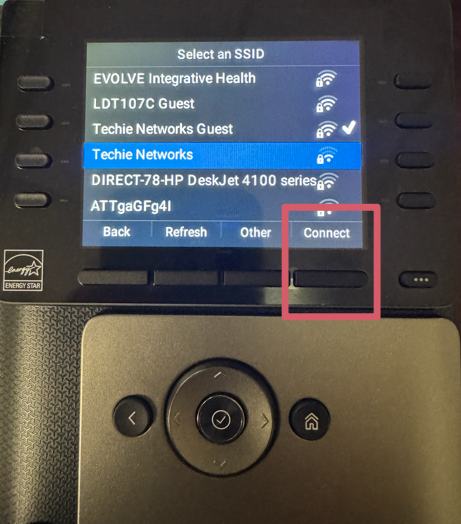
8. Finalize Connection. After entering the password, press Connect. The phone will reboot again to complete
the connection. This can also take up to 2 minutes.
9. Once it reboots, you’ll see the Wi-Fi icon on the home screen. Your phone is now connected to Wi-Fi and
ready to use