Microsip is the software you’ll use to make outbound and receive inbound calls on your laptop or desktop.
Download the Microsip installer to your desktop before proceeding to the next steps.
- Open the MicroSip App.
- Click on the arrow in the top right, and select “Add Account..”
- (image here of the drop down, and the contents of the drop down showing add account)
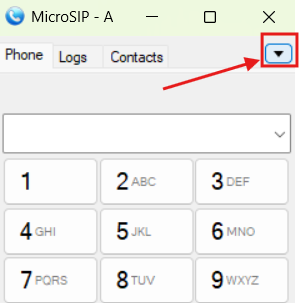
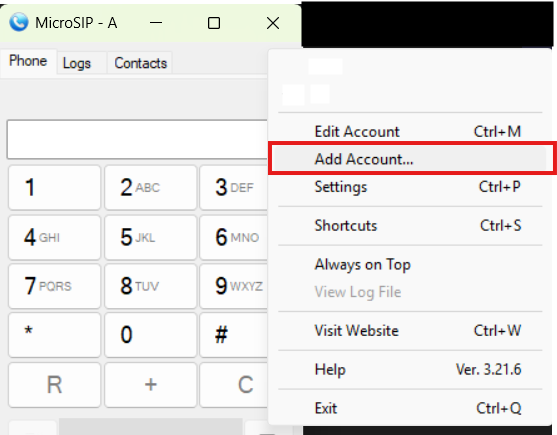
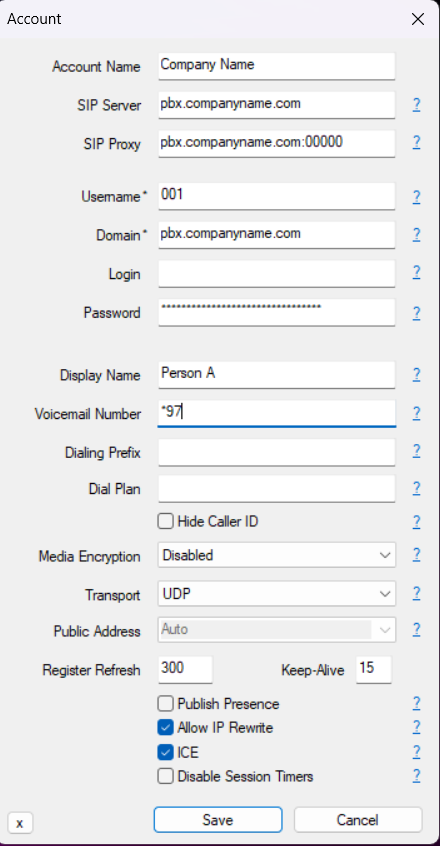
- On the dialog that shows up, enter the following information. This information will be provided by your administrator
- Account Name : (Enter your business name)
- SIP Server
- Sip Proxy
- Username
- Domain
- Password
- Display Name : Enter your name, or the phone extension name you are adding
- Voicemail Number (Usually *97)
- Transport (Normally UDP)
- Check Allow IP Rewrite
- Check ICE
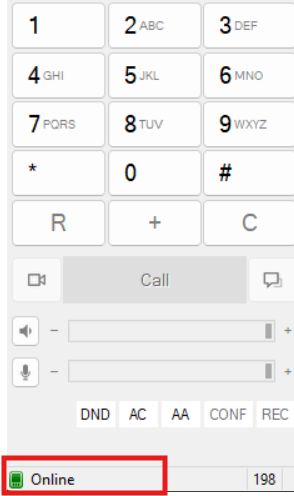
- Click Save. After saving, if everything is set right, you’ll see the Green online signal in the bottom left corner (image here of that).
- Click the Top right arrow one more time, and select “Settings”
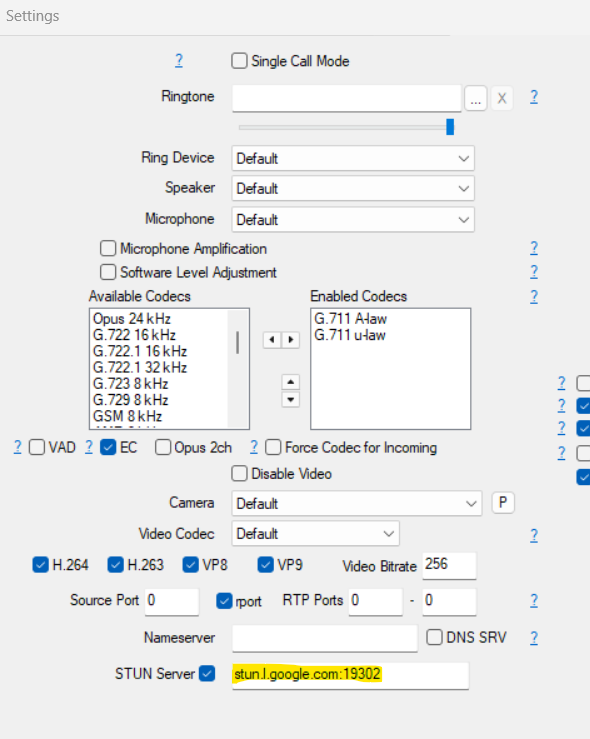
- Check the box for STUN server and enter the following into the STUN server field
- ston.google.com or whatever it is.
- Finally, you can place a test call to make sure this works. If you have audio issues, you can check your device settings in the settings screen.