In the examples listed below, refer to the instructions provided with this page link which includes your usernames, passwords and server names.
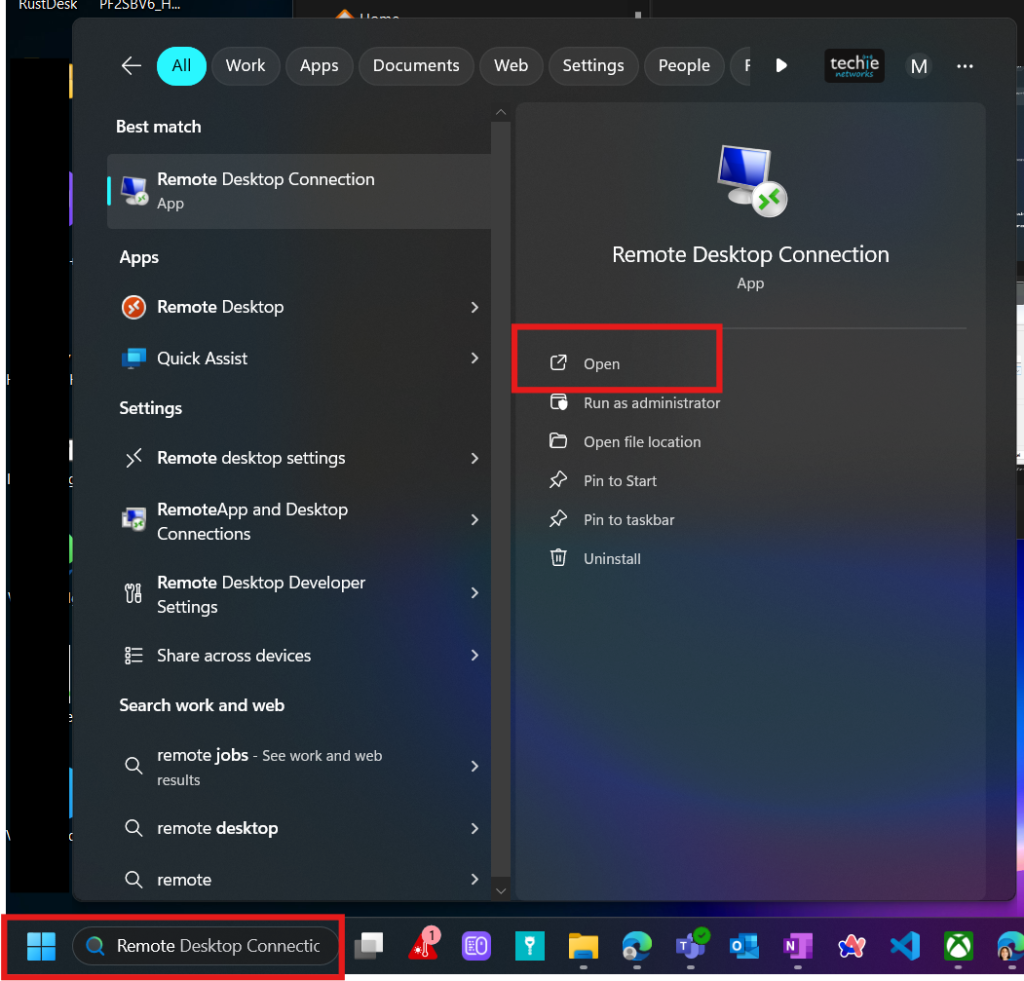
1. Open the RDP App:
On your local Windows PC: In the search box on the taskbar, type Remote Desktop Connection, and then select Remote Desktop Connection.
Keep in mind your server, username, etc. information will be sent to you.
2. Access Remote Desktop with Server Information
Once open, you’ll see this window. Paste in the Server and Username info name provided by your administrator.
Example: cloudapp.azure.com
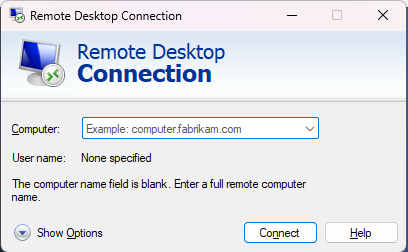
Click Show Options in the bottom left to configure the next settings.
3. Click Advanced & Settings
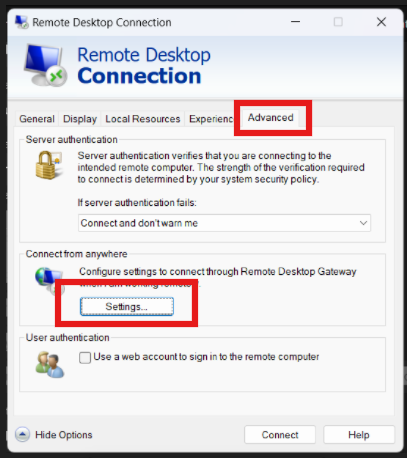
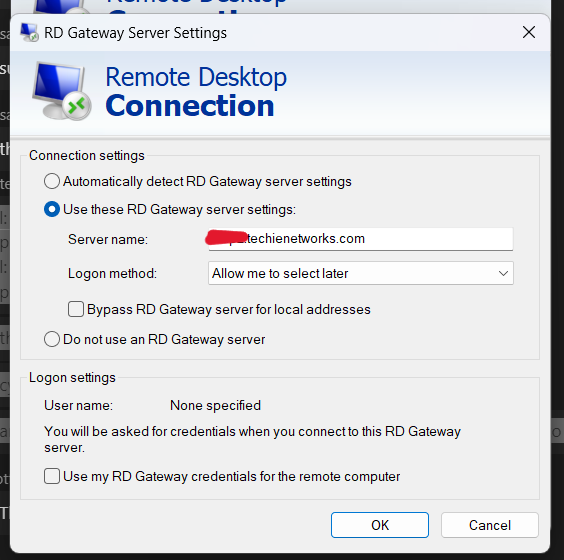
Click on Settings, Here you’ll type in server name, then click okay.
Enter the gateway address provided by your administrator.
3. Connection
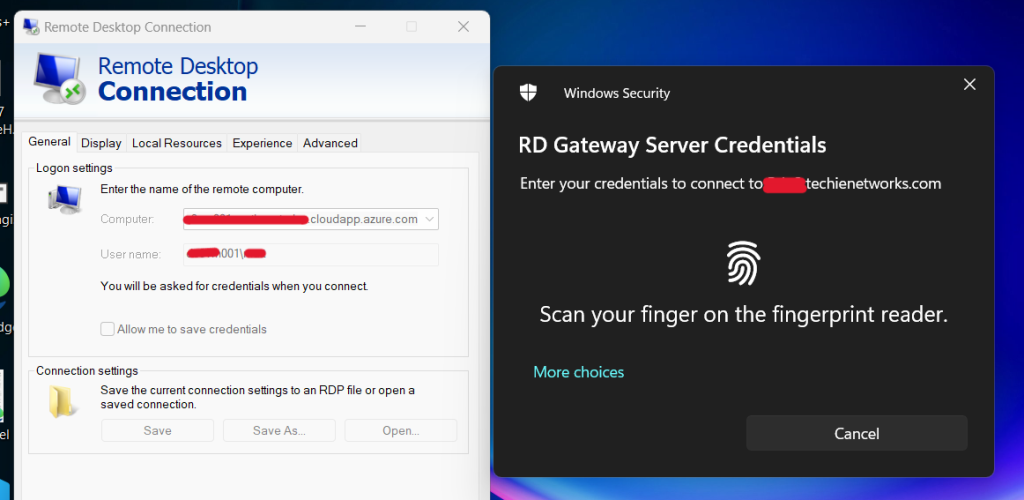
If prompted for windows hello, click more choices, use a different account. Enter the Login for the Remote Desktop first, and then the second one will be for the server itself.
1st Prompt:
Don’t scan your finger. Click “More Options”
Click: Use a different account. Enter in the RD Gateway credentials provided by your administrator. they may look like TECHIE\username. ignore the warning about it having to be an email address.
2nd Prompt:
The server name will be provided by your admin.
- Note: This is for the Azure Server
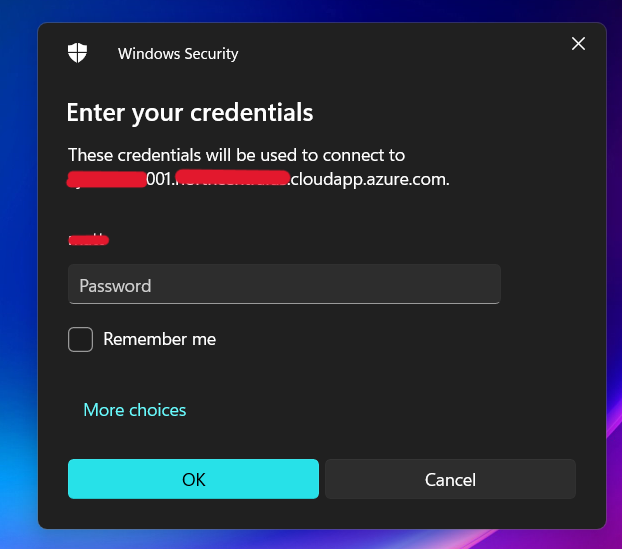
This will open the Remote Screen, giving you access to your system.
If you require a more assistance after using the instructions above, contact us for a customized solution.