When you receive this notification there are two options.
You have the option to either upgrade your storage capacity. Or you can choose to clear out some of your storage to free up some space. If you choose the latter option, here is a quick how to.
Login to webmail (office.com, outlook).
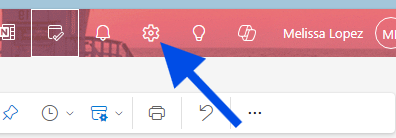
1. Click on ‘Settings’
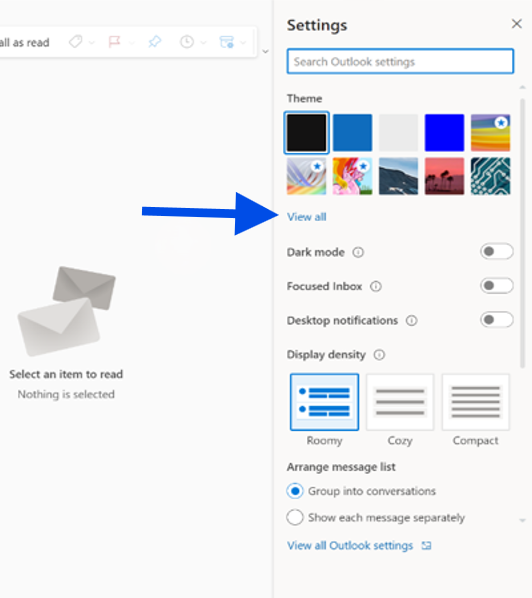
2. Click on ‘View all Outlook settings’
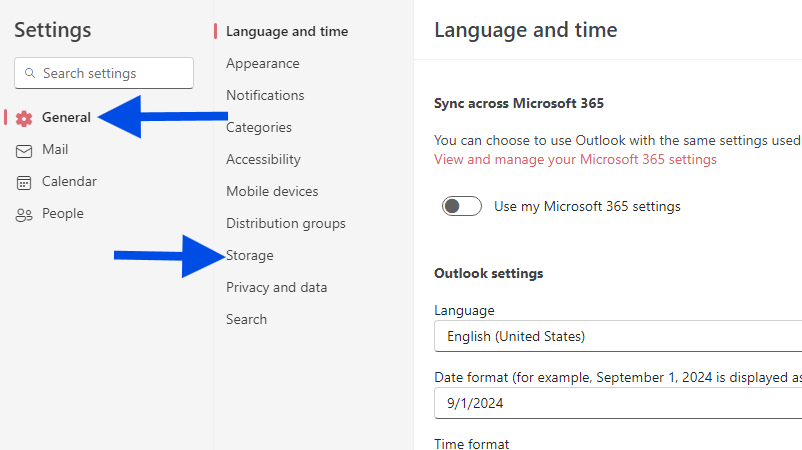
3. Click on ‘General’ – Then click on ‘Storage’
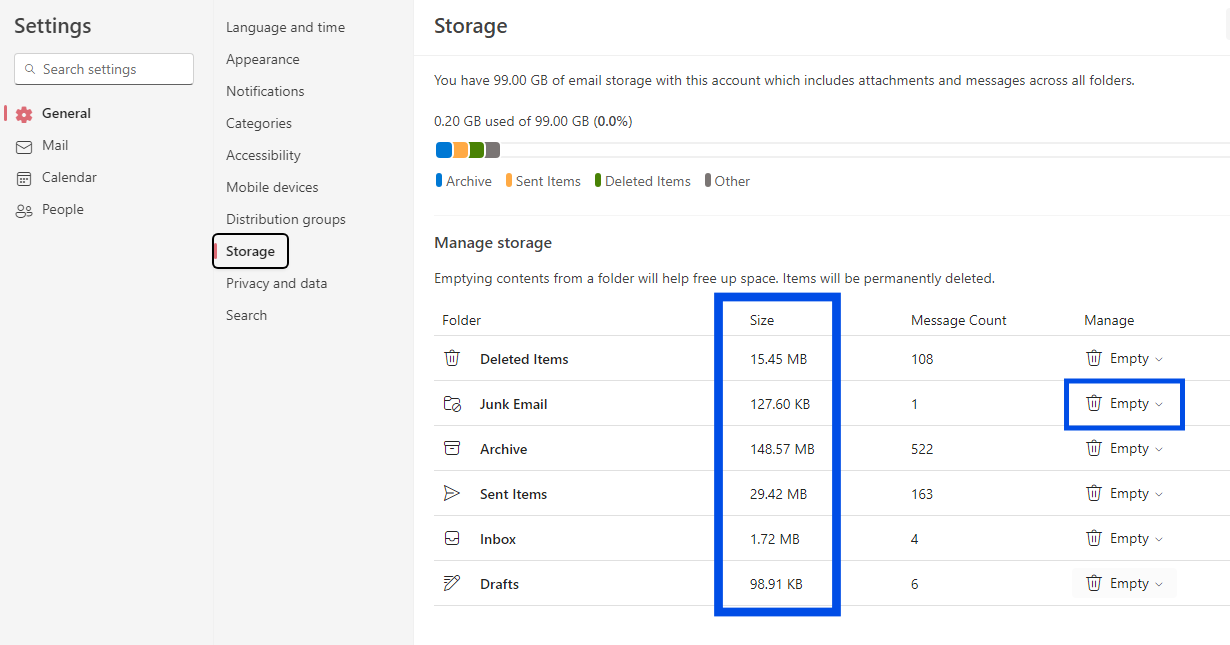
Once you have reached General > Storage you will see a breakdown of how much space each folder in your mailbox is taking.
Below, you should see a list of the folders represented in the breakdown with the option to permanently delete all items (or those older than 3, 6, or 12 months) in these folders to free up space.